STEP 1: Launch the Acrobits Softphone app.
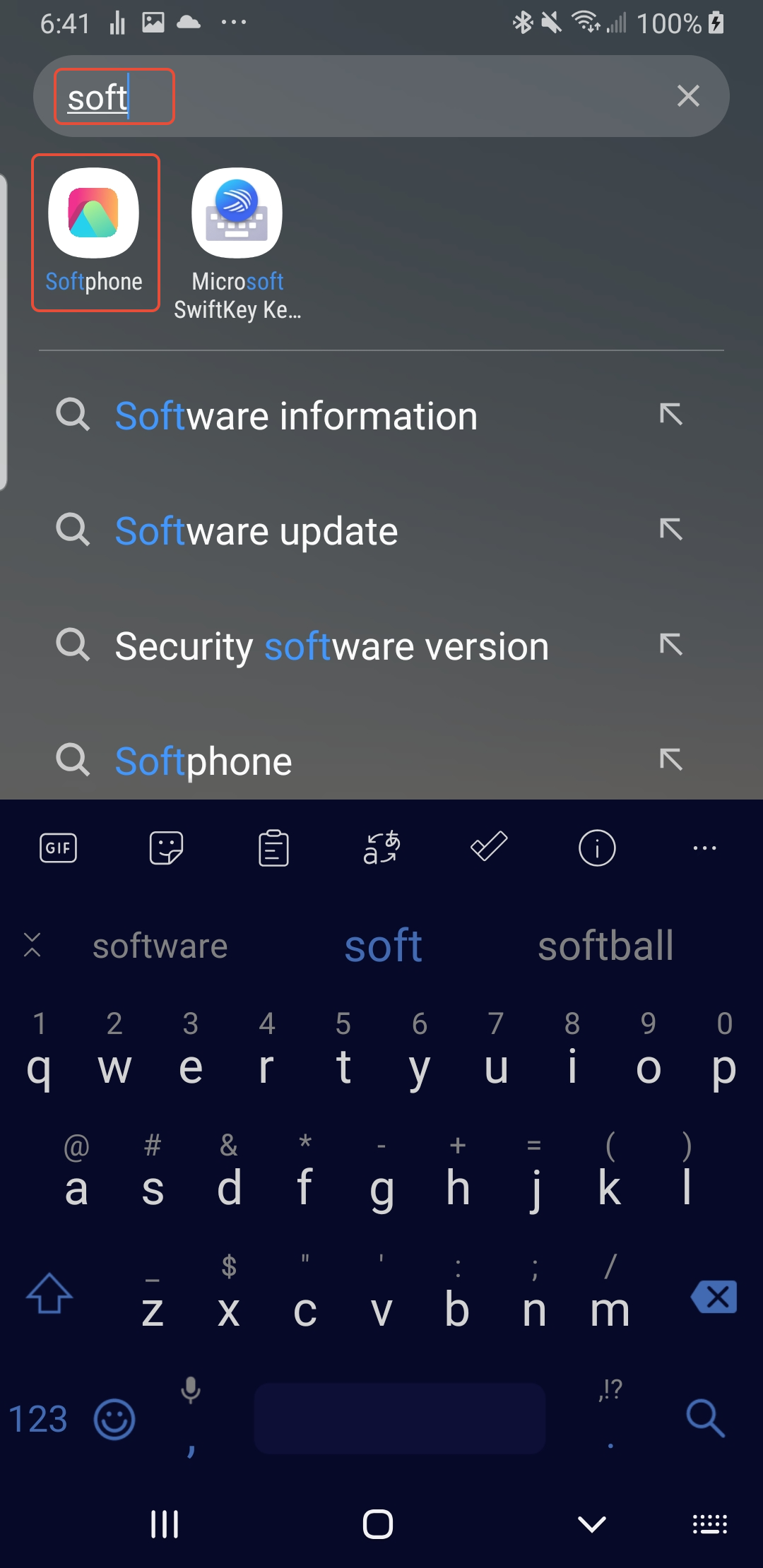
For Android Users: Go to your phone's "Finder Search" and type "soft", then click the "Softphone" icon.
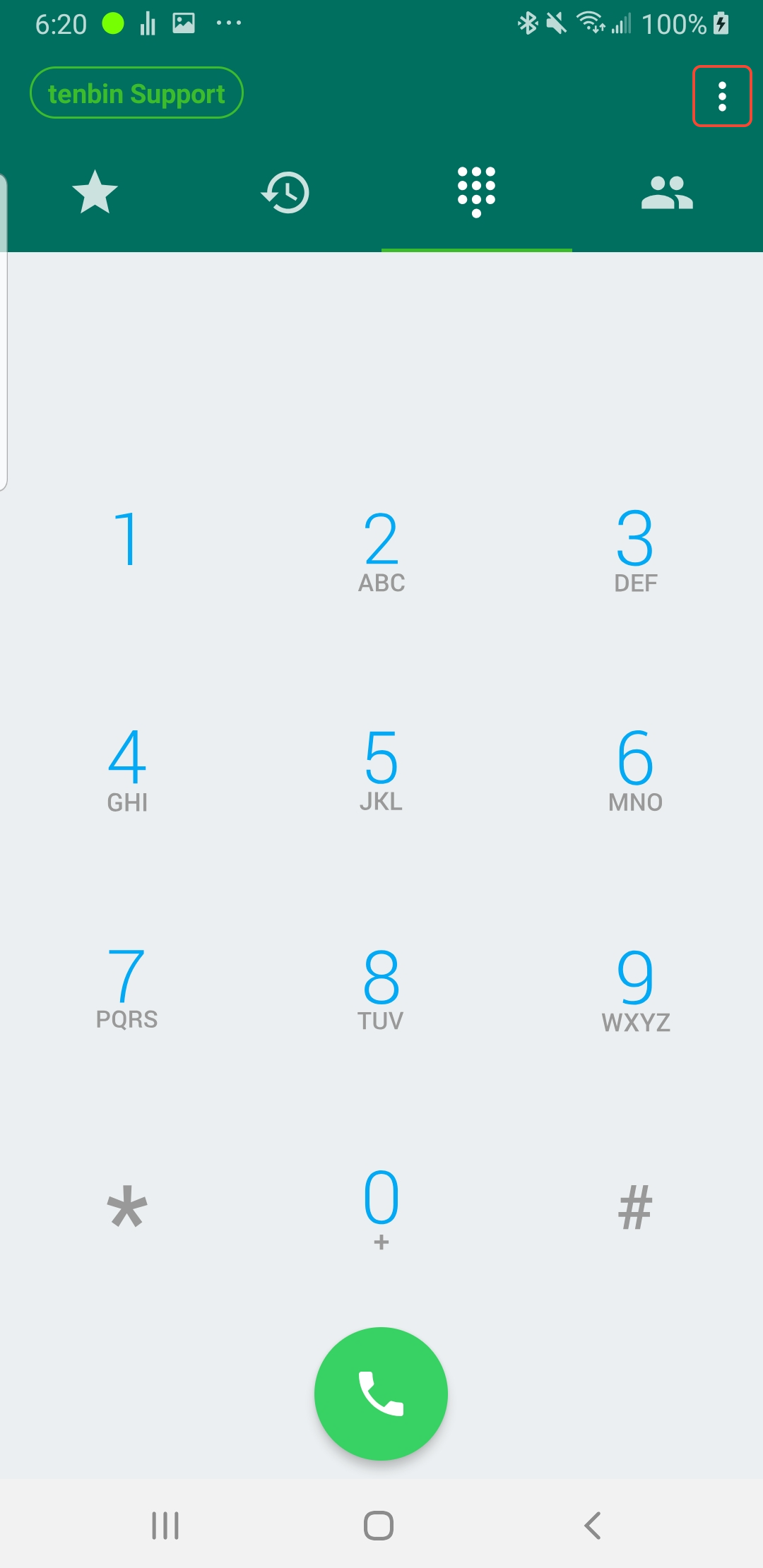
STEP 2: Click the "Kabab" button (the 3 vertical dots) in the top right conner.
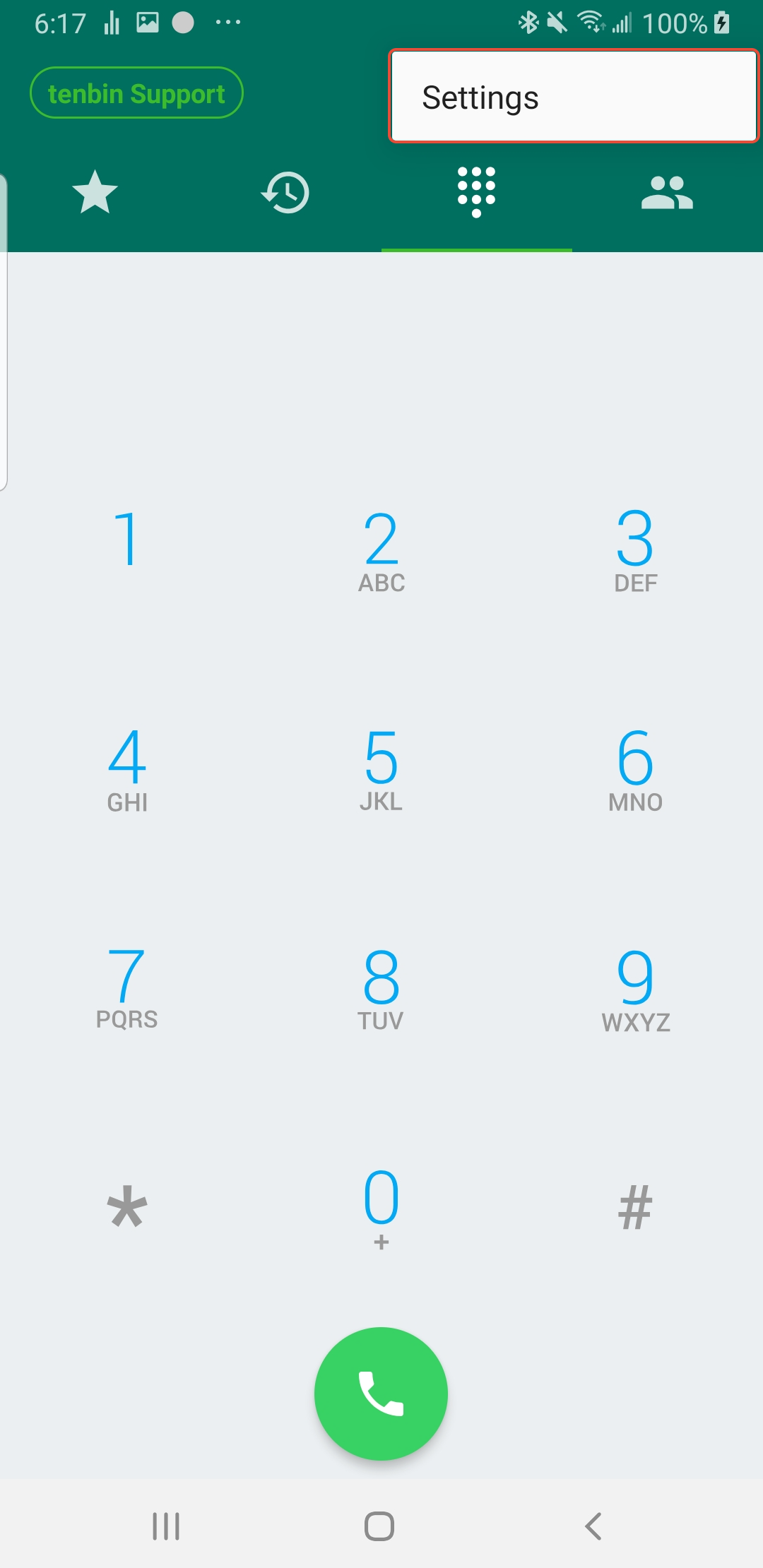
STEP 3: Tap on "Settings" in the top right corner.
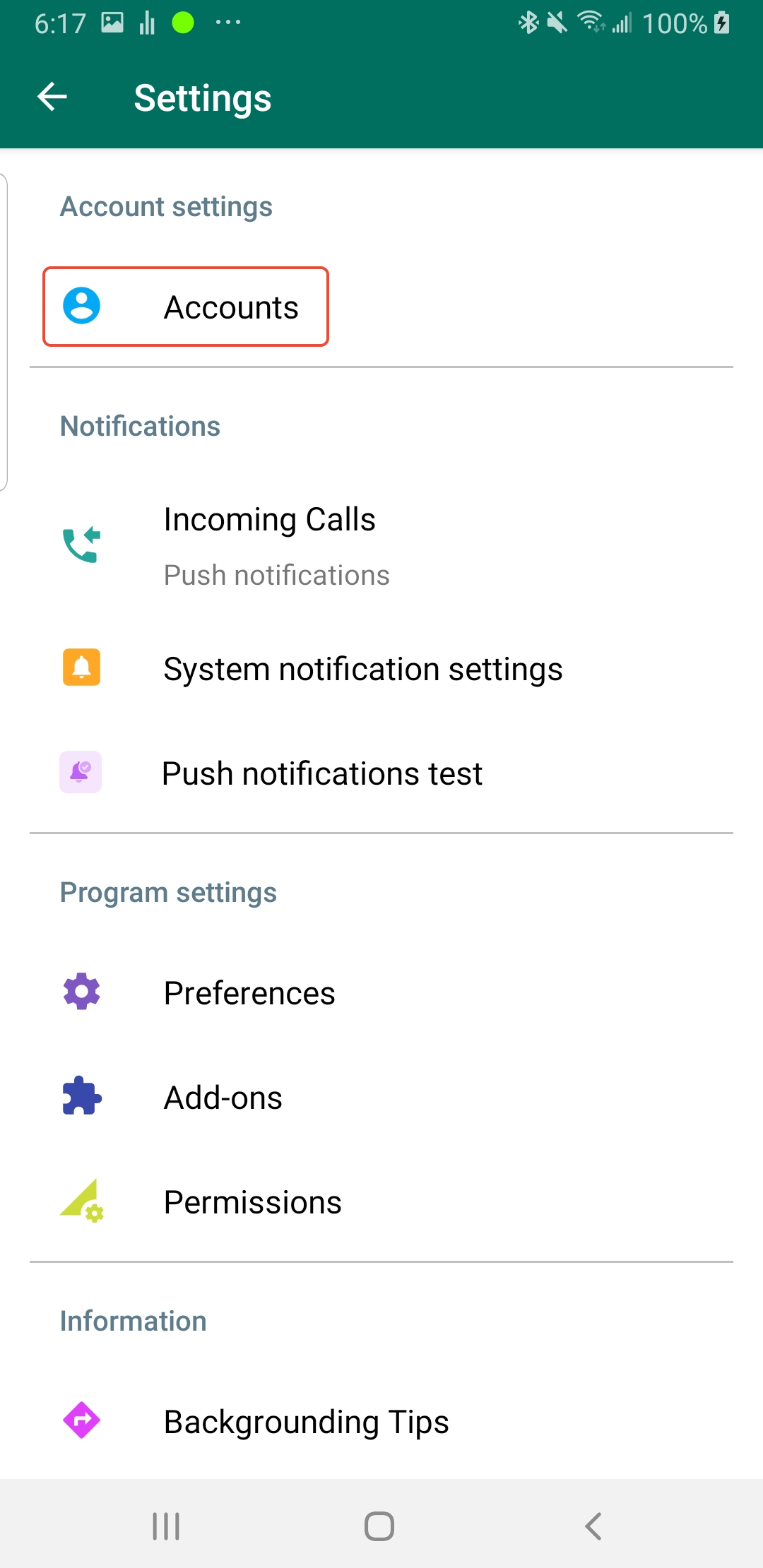
STEP 4: Tap on "Accounts".
STEP 5: Tap the green "+" button in the bottom right corner to add a new account.
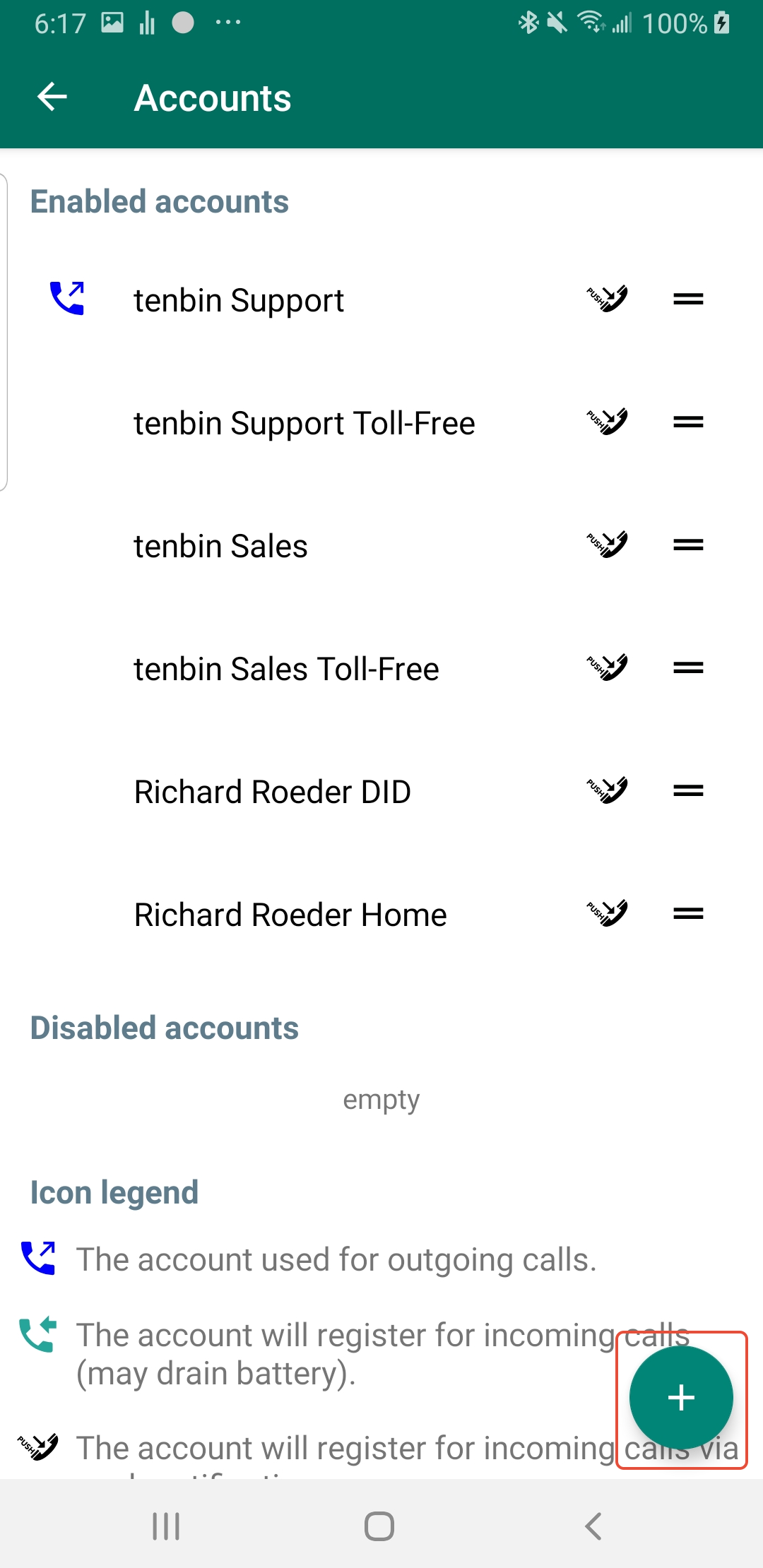
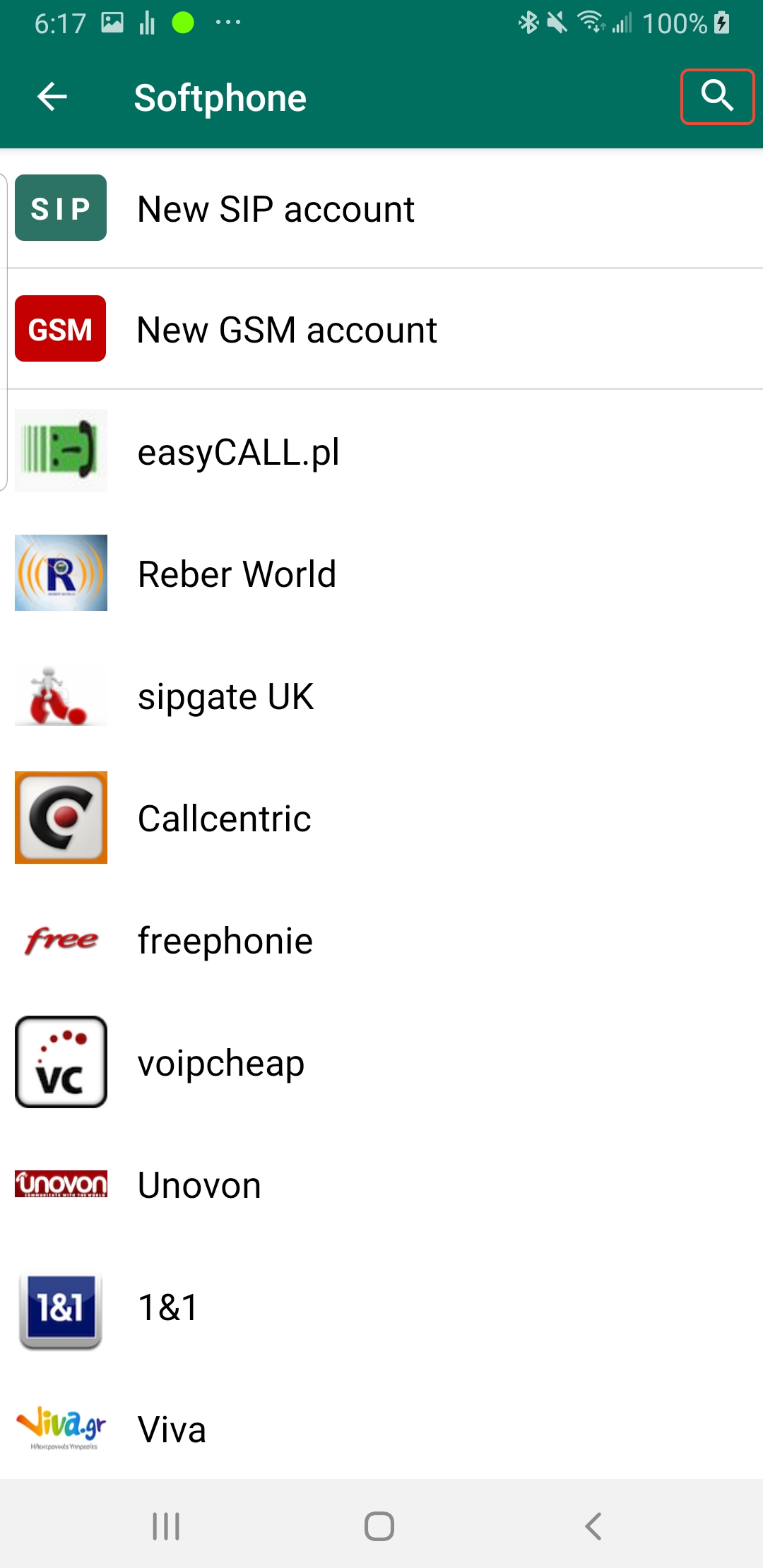
STEP 6: Click on the Search button (magnifying glass icon) in the top right corner
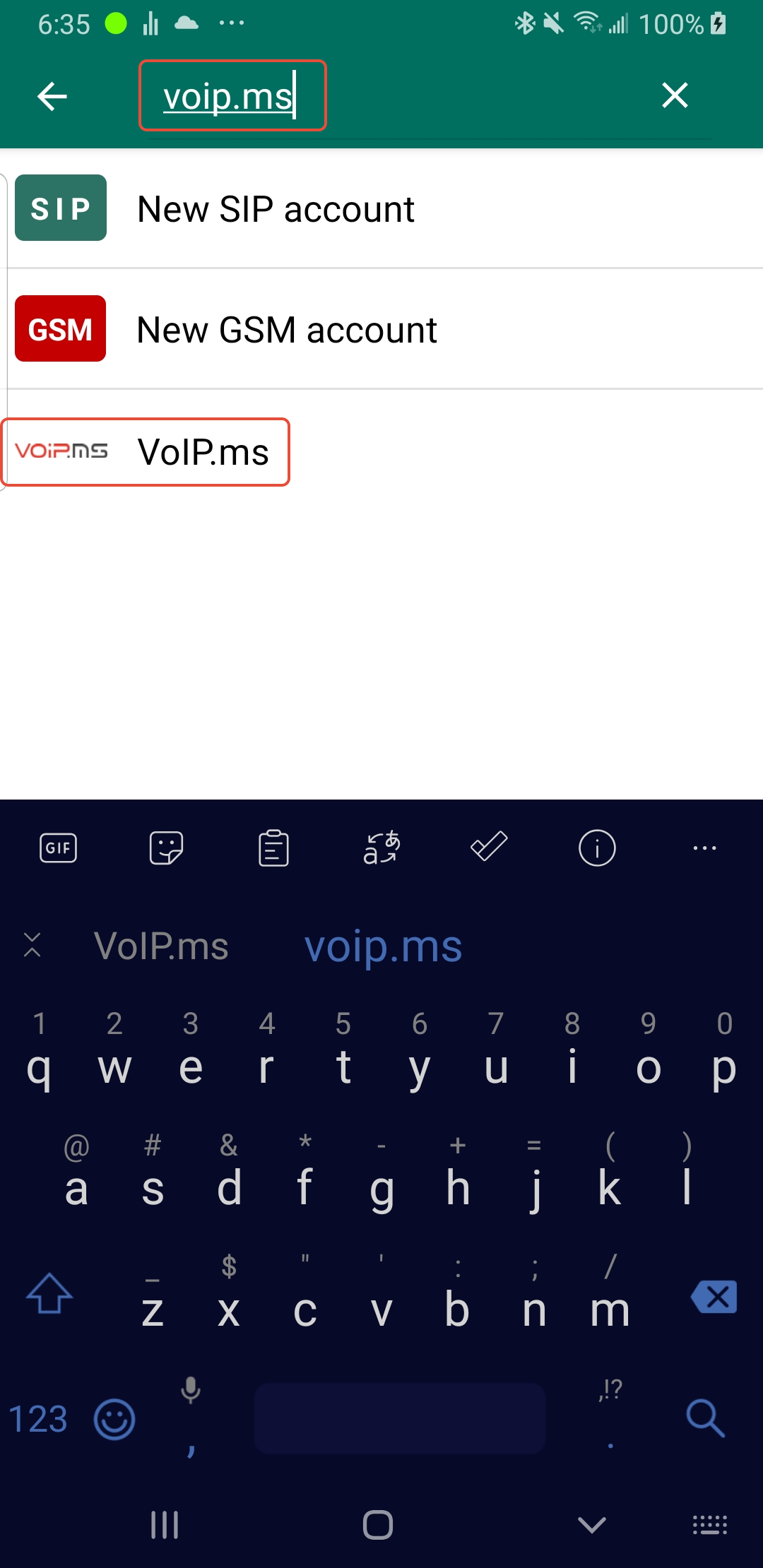
STEP 7: Type voip.ms in the Search box, and tap voip.ms in the results below.
STEP 8: Enter your Account Details as provided by us and highlighted below:

Be sure to give the account a memorable Title, i.e. "Main Number", or "Direct Line", or "Richard's DID". Note: VoIP.ms passwords are case sensitive.
Was this article helpful?
That’s Great!
Thank you for your feedback
Sorry! We couldn't be helpful
Thank you for your feedback
Feedback sent
We appreciate your effort and will try to fix the article